
Before you start
Sign in to your host account and check the event name before making changes.
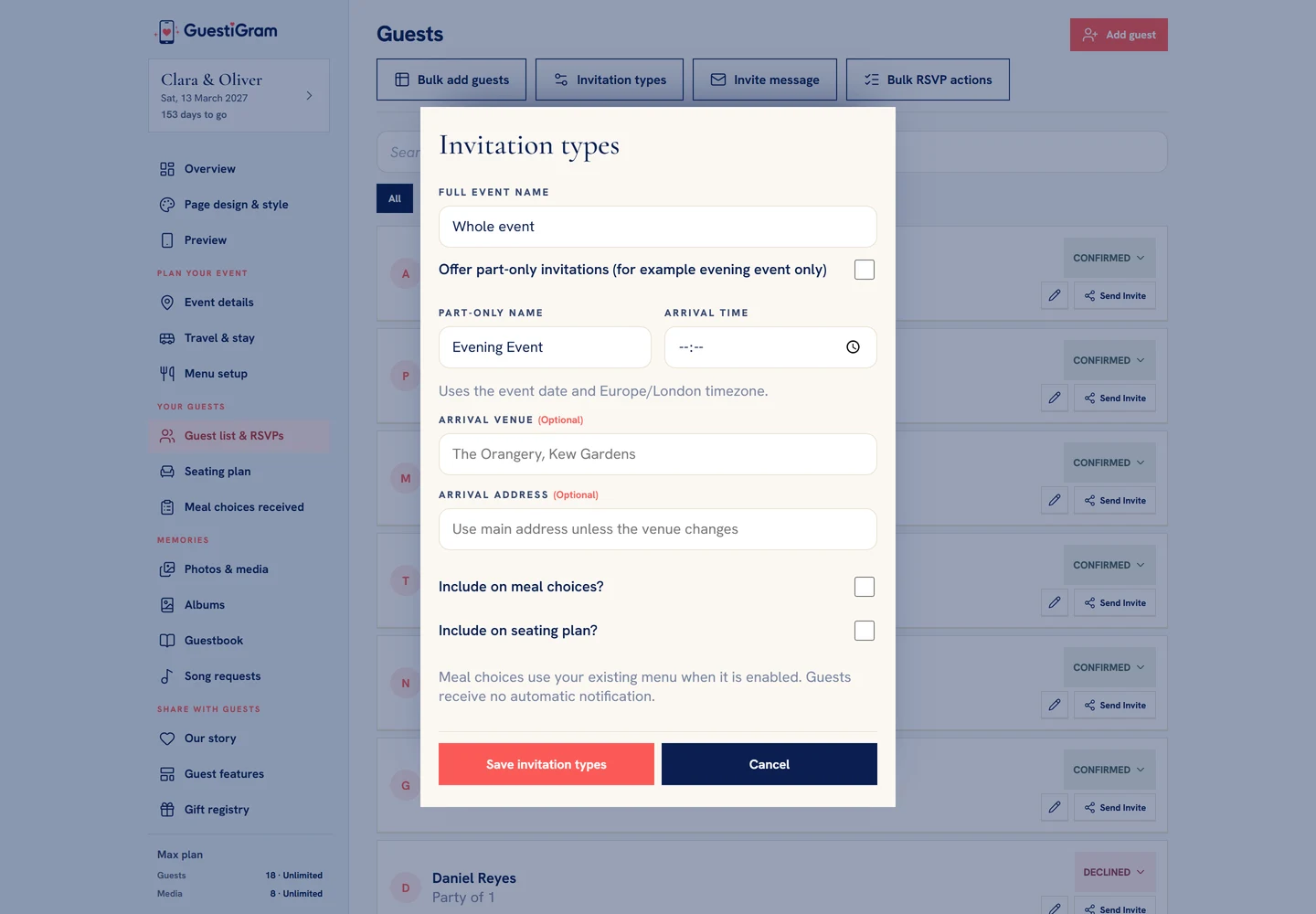
What to do
- Open Guest list & RSVPs and choose Invitation types. On phones, open More first.
- Name the full event if you want a label other than Whole event. Enable Offer part-only invitations and enter its name, such as Evening only.
- Set the part-only arrival time. It uses your event date and timezone. Leave the arrival venue and address empty to use your main venue.
- Enable Include on meal choices? and Include on seating plan? only when these guests need them. Both begin off.
- Save invitation types. Choose Invited to on each group or in Add/Edit guest.
- Review the confirmation when changing an existing group: its RSVP resets to Awaiting and its seating is removed.
- Compare the invitation rows and Combined total on Overview. Send or resend personal invitations yourself when guests need an update.
Check the result
Check both invitation types through their personal links. Confirm the arrival time and which meals and seating actions appear.
Good to know
- Renaming invitation labels does not change guests’ invitation types or RSVPs. Changing a group’s invitation type does.
- Part-only guests see activities from their arrival time onwards. Saved meal choices count only while the person is attending and eligible.
- Turning seating eligibility off removes affected assignments; turning it on does not restore them. Change all part-only groups to full-event before disabling part-only invitations.
Need help with this?
Tell us your event name, device and what happened. Do not include passwords or private guest details.
Contact support