
Before you start
Create invitation groups, set their capacity and optionally record individual names and contact details. Sign in to the correct host account and confirm the event name before making changes. Use a current browser and allow any save or upload confirmation to finish before leaving the page.
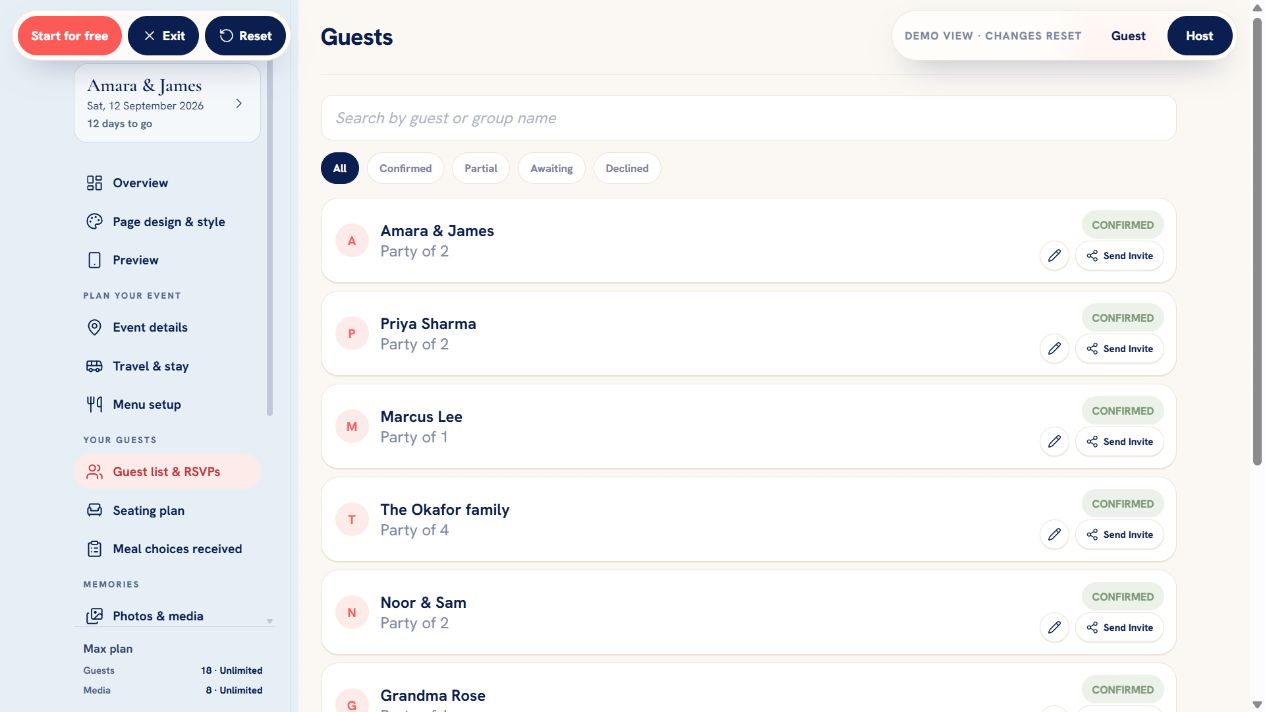 Demo example
What to do
- Open Guest list & RSVPs from the host navigation and choose Add guest.
- For a spreadsheet, choose Bulk add guests. Paste one row per person in this order: Person or Group Name, Guest Name, Email Address, Phone Number. The two names are required; email and phone are optional. Repeat the group name for everyone sharing one invitation.
- Choose the country for local phone numbers, correct highlighted cells, then Review guests. Choose Whole event or the configured part-event option for each group. Review repeated names and matching existing groups; skip a match or explicitly add a separate new invitation.
- Select Add guests to add the reviewed groups. Bulk import only adds new groups and never changes existing invitations. Up to 500 people can be added per batch, with up to 100 per group, within your remaining guest allowance. No invitations are sent automatically. If confirmation is interrupted, use Retry import confirmation to check the same batch safely.
- Enter the person or group name and the total number of invited people.
- Add individual guest names when known; blank names use a numbered group fallback.
- Optionally add host-only email and international telephone contact details.
- If Invitation types is enabled, choose Whole event or the host's part-only option under Invited to. New groups default to Whole event.
- Use Edit guest group later to correct names, contacts or invitation capacity.
- To update an RSVP, select the group's coloured status pill. Confirm everyone or Decline everyone saves a reply for the whole group immediately.
- Choose individuals to answer Yes or No for each person, then select Save RSVP. Cancel leaves the saved reply unchanged.
- Use Reset to Awaiting to clear the group's RSVP when you need a new response.
Check the result
Open the affected page again and confirm the saved information, status or media appears as expected. When the change affects guests, use Preview or the event link on a second device to check the guest result. Avoid making the same edit on two devices at once while a save is still in progress.
Good to know
- Party size is the invitation capacity, not the number currently attending.
- Changing capacity after an RSVP requires confirmation and resets that group's RSVP and seating. Meal choices remain attached to existing member IDs and only count while those people are attending and eligible.
- New groups remain Awaiting until every invited member has an RSVP answer.
- Quick RSVP changes keep names, contact details, personal links and saved meal choices. Reports include attending people only.
- If nobody attends or the RSVP returns to Awaiting, the group is removed from its table. If increased attendance makes its table too full, the group moves to Unseated and a message explains why.
- Quick RSVP changes do not send a notification to the guests.
If it still does not work
Reload the affected page once and confirm you are using the correct event URL. Note the device, browser, approximate time and exact message shown. If the issue involves a Cloudflare error, include its Ray ID and UTC time. Do not repeatedly submit payments, destructive actions or large uploads while an error is active.
Need help with this?
Send the event URL, device and what happened. The form keeps this guide connected to your enquiry.
Contact support