
Before you start
Configure menu courses as a host and let confirmed guests choose meals for attending members. The available controls depend on whether you are the signed-in host or a guest using the event link. Use a current browser and allow any save or upload confirmation to finish before leaving the page.
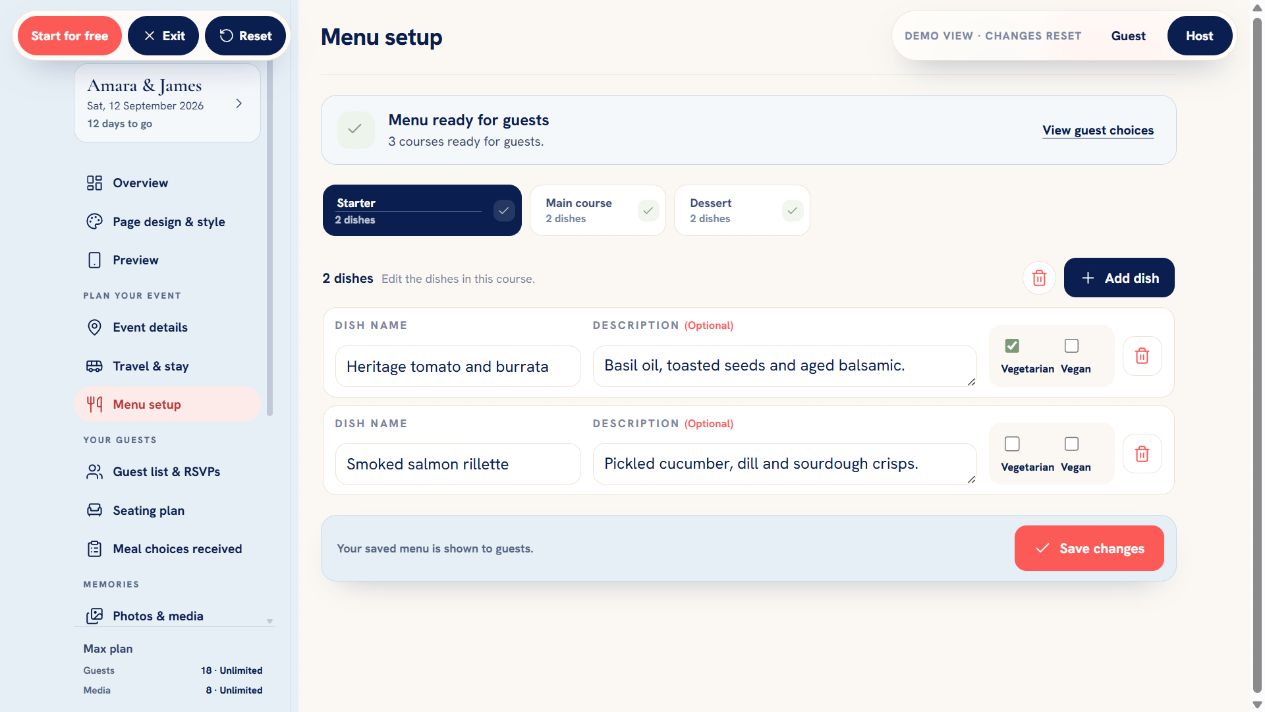 Demo exampleChoose a course
What to do
- The host opens Menu setup and chooses Add course; a compact editable course tab appears in the horizontal row.
- Select a course tab, edit its name, choose Add dish and complete each compact dish row before saving changes.
- The guest completes RSVP before opening Meal choices.
- The guest selects a dish for each attending member, answers whether they have dietary requirements and adds details when needed.
- The host reviews saved choices and dietary details in Meal choices received or the venue PDF before confirming numbers with the venue.
Check the result
Open the affected page again and confirm the saved information, status or media appears as expected. When the change affects guests, use Preview or the event link on a second device to check the guest result. Avoid making the same edit on two devices at once while a save is still in progress.
Good to know
- Meal choices are required only for attending guests whose invitation includes meals and when the event's meal feature is enabled.
- Dietary details are visible to the event hosts and their venue report, so guests should share only catering information that is needed.
- Changing invitation type or group capacity resets the RSVP. Existing meal choices stay attached to the same member IDs and count in reports only when those people are attending and eligible.
If it still does not work
Reload the affected page once and confirm you are using the correct event URL. Note the device, browser, approximate time and exact message shown. If the issue involves a Cloudflare error, include its Ray ID and UTC time. Do not repeatedly submit payments, destructive actions or large uploads while an error is active.
Need help with this?
Send the event URL, device and what happened. The form keeps this guide connected to your enquiry.
Contact support